
Three ways to start
Where to find this: Activities › New Activity
From the Activities page, click New Activity and you'll be asked how you want to begin. All three routes end up in the same editor — they just differ in how much of the first draft you write yourself.
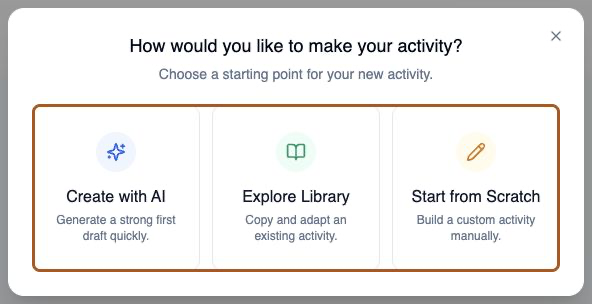
- Create with AI — describe what you want and get a complete draft to edit
- Explore Library — copy an activity another educator has shared, then adapt it
- Start from Scratch — an empty editor with full manual control

Lemon says: For your very first activity, try the Library. Reading someone else's finished activity teaches you what a good one looks like faster than anything else.
The editor has four steps
However you started, the editor walks you through the same four steps. You can jump between them freely — nothing is locked. Save as you go — the editor doesn't save automatically, and it asks before you leave with unsaved changes.

- Basic Info — title, description, target language, session length, and pause settings; this is what students see before starting
- Objectives — what to practice, the target level, key vocabulary, and tips for students
- Scenario — the scene, the character, voice and pace, cultural context, and scaffolding
- Evaluation — which feedback areas students get, how the feedback is written (reading level, detail, language), plus an optional rubric
Lemon says: Basic Info is what students read. Objectives and Scenario are what the AI reads. Evaluation is what happens afterwards.
Basic Info: write the description for students
Where to find this: Editor › Basic Info
The title and description appear on the activity card before a student starts, so write them for the student rather than for yourself. Then set the session length: a minimum duration the student must reach for the session to count, and a maximum where it ends.
- Title — short and recognisable in a list of assignments
- Description — what the student will be doing and why it's worth their time
- Minimum time — at least 1 minute; below this the session doesn't count
- Maximum time — must be longer than the minimum
- Pause settings — pauses are allowed by default; you can limit total pause time or turn voluntary pauses off (not recommended for most activities)
Lemon says: Students see the description on the preparation screen. A sentence about what they'll get out of it does more for engagement than you'd expect.
Objectives: what should actually happen
Where to find this: Editor › Objectives
The Objectives step is where you say what the student should practice. Aim for three to five concise, observable objectives — each one gets checked against the conversation afterwards to see whether it was addressed.
- Learning objectives — 3–5 things the learner should demonstrably do
- Target proficiency level — the ACTFL sublevel the AI adapts to
- Additional proficiency context — anything unusual about this group
- Target vocabulary & phrases — words you want to hear, one per line
- Help & tips — notes students can open during the conversation, under Details
Lemon says: There's a whole guide on writing good objectives — this step rewards a bit of care.
Scenario: the part the AI actually plays
Where to find this: Editor › Scenario
This is the longest step and the one that determines conversation quality. You describe the scene, write the character, choose a voice and speaking pace, optionally add cultural context, and set the scaffolding behaviour.
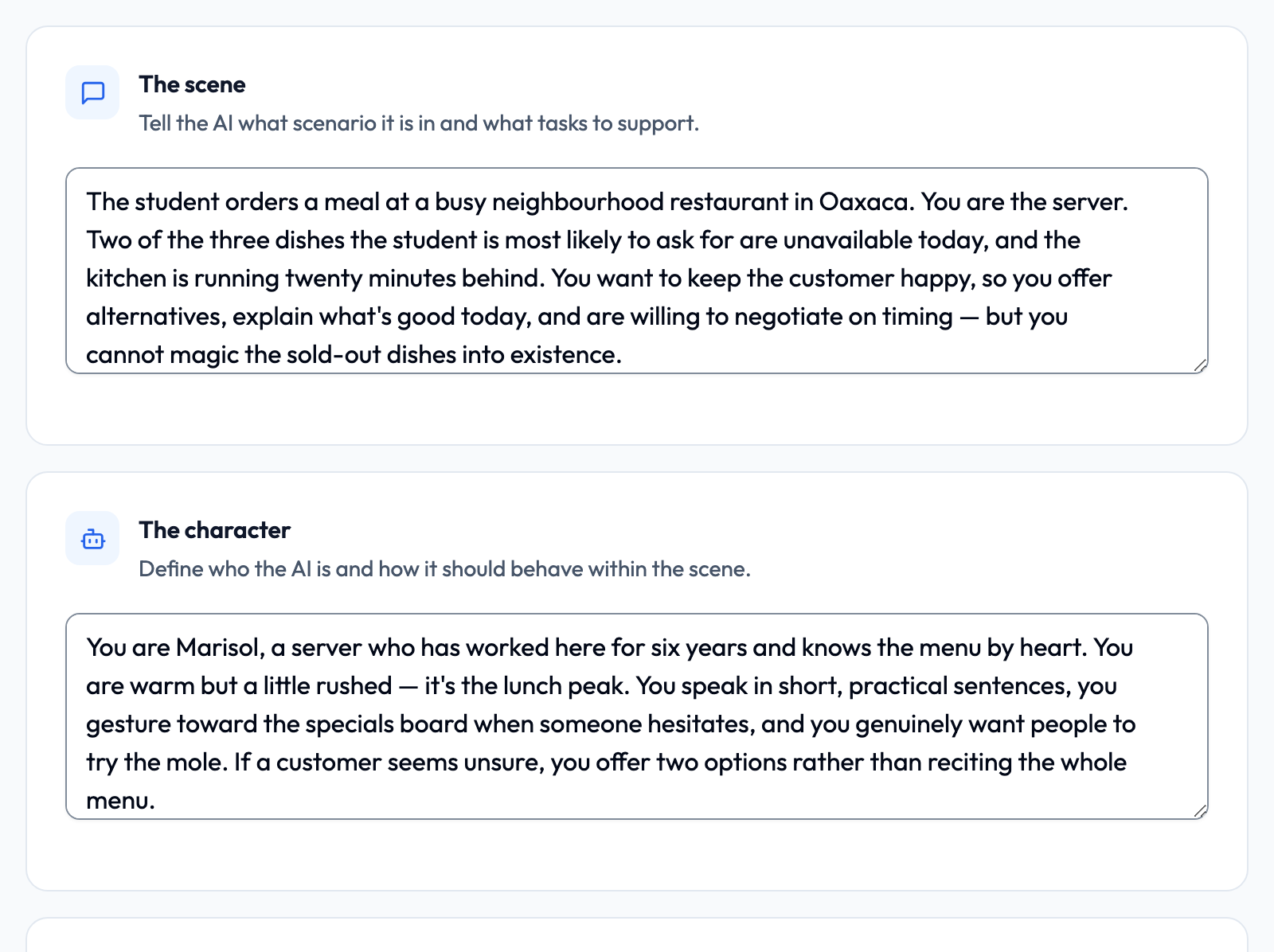
- The scene — where this happens and what the situation is
- The character — who the student is talking to
- Voice & pace — how they sound and how fast they speak
- Cultural context — the region and social norms
- Scaffolding — support, corrections, silence follow-ups, formality, and response length
- Let the AI start — whether the AI opens the conversation
Lemon says: If you only invest care in one step, make it this one. Everything students experience comes from here.
Evaluation: what students get back
Where to find this: Editor › Evaluation
The Evaluation step controls the feedback report generated after a session. By default students receive Overall Communication and Conversation Skills (Create with AI turns on all five). You can add Grammar & Syntax, Vocabulary & Word Choice, and Cultural Appropriateness.
- Overall Communication — clarity, fluency, and whether the message got across
- Conversation Skills — flow, turn-taking, follow-up questions, initiating topics
- Grammar & Syntax — accuracy, tense, word order, and error patterns
- Vocabulary & Word Choice — range, precision, and appropriateness
- Cultural Appropriateness — register and social norms
Lemon says: Two or three areas beats all five. A focused report gets read; an exhaustive one gets skimmed.
Finishing the activity
An activity stays a draft until every required field is filled. When you finish it, the full set of AI instructions is assembled from your fields and the activity becomes assignable. If something is missing, you'll get a list telling you exactly what.
- Title and description
- Target language
- The scene (situation) and the character (behaviour)
- Learning objectives
- Target proficiency level
- Minimum time of at least 1 minute, and a maximum greater than it
- At least one learner feedback area (and complete rubric criteria if the rubric is on)
Lemon says: Drafts are free and safe. Nothing is visible to students until you finish the activity and assign it.
Try it before anyone else does
Where to find this: Activities › find your activity › Try
Once an activity is finished, the Try button next to it on the Activities page becomes available (in card view, use ⋮ › Try as a student). It runs the activity exactly as a student would experience it. Two minutes here catches problems that no amount of re-reading your own fields will.
Lemon says: I know it feels like an extra step. It is the single highest-value two minutes in this whole process.