
Everything starts in the Class Workspace
Where to find this: Classes › open a class
Open a class from the Classes page and you land in its workspace, which has seven tabs. Student Work is spread across three of them, which is the single most common source of "I can't find where my students' work went".
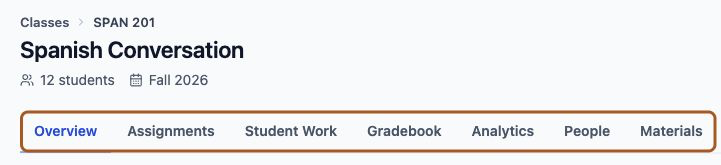
- Overview — a snapshot of the class at a glance
- Assignments — what's assigned to which section, and when it's due
- Student Work — per-assignment completion status and individual submissions
- Gradebook — every student against every assignment in one grid
- Analytics — class-wide patterns and proficiency trends
- People — your roster, and one student's history across all assignments
- Materials — documents that inform AI generation

Lemon says: Student Work answers 'how did this assignment go?'. People answers 'how is this student doing?'. Gradebook answers both at once.
Student Work: one assignment at a time
Where to find this: Class Workspace › Student Work
The Student Work tab is organised by assignment. Pick one from the dropdown and you get every student in the section with their current status, so you can see at a glance who's done, who's behind, and who hasn't started.
- Completed — finished on time
- Late — finished after the due date
- Needs review — practiced, but credit is waiting on your review
- In progress — has attempted, not yet submitted
- Not started — no attempts yet
- Overdue — past the due date and not finished
Lemon says: If your class has multiple sections, check the section selector at the top. Each section has its own assignments and its own roster.
Opening an individual submission
Select View on any student who has submitted to open their full submission. This is where the actual evidence lives — what they said, how it sounded, and what the AI made of it. For completion-only work you see only its shape (duration, turns and the proficiency estimate), not the transcript or audio.
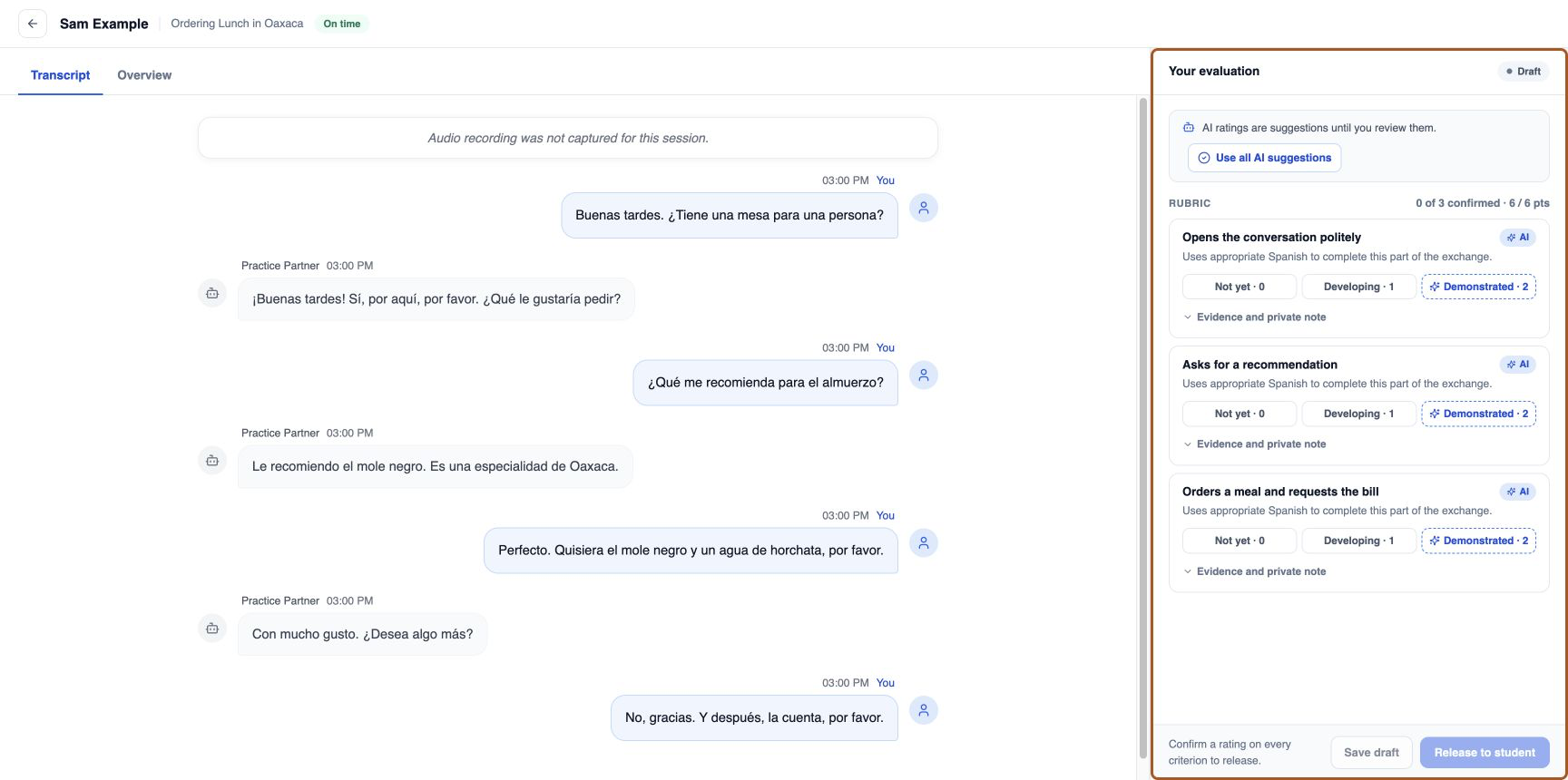
- Transcript — the full conversation, turn by turn
- Overview — the summary the student received
- Proficiency — the estimated level for this conversation
- Detailed Feedback — the in-depth analysis for each feedback area
- AI Coach — the follow-up chat, if the student used it
Lemon says: Start with the transcript. Reading twenty turns of what a student actually said tells you more than any summary.
Listening to the recording
Where a recording is available, you can play back the session audio. For speaking practice this matters more than usual — pronunciation, hesitation, and fluency are all invisible in a transcript, and the transcript itself is produced by speech recognition that can misread accented speech.
Lemon says: If a transcript looks oddly broken, listen before you conclude anything about the student. It's often the recogniser, not them.
The Gradebook grid
Where to find this: Class Workspace › Gradebook
The Gradebook shows every student against every assignment in one view, which is the fastest way to spot a pattern — a student who's quietly stopped submitting, or an assignment that half the class skipped.
- Needs review — has work waiting on you, including grading you've saved as a draft
- Reviewed — locked, but not yet visible to the student
- Released — the student can see it
Lemon says: Saving and releasing are different on purpose. You can grade a whole section, then release everything at once.
A review flow that doesn't take all evening
Reviewing every submission end to end doesn't scale past a section or two. This order gets through a class quickly while still catching what matters.
- Open the Gradebook and filter to Needs review
- Scan the Student Work statuses first — deal with not-started and late before reading anything
- For each submission, skim the transcript rather than reading every turn
- Only listen to the audio when the transcript looks unusual or the student is borderline
- Grade in draft as you go, then release the whole set together from the Gradebook column header
Lemon says: Skim, don't read. You're looking for whether the objectives happened, not for every article error.
One student across the whole term
Where to find this: Class Workspace › People › row menu › View profile
When you want to look at a person rather than an assignment, go to the People tab and choose View profile from the student's row menu. That gives you their history across every assignment in the class, which is what you need for an advising conversation or a mid-term check-in.
Lemon says: This is the view for 'is this student keeping up?'. For 'is this student improving?', use Recent change in Student Work — it compares their two most recent rated assignments.