
Creating and assigning are separate steps
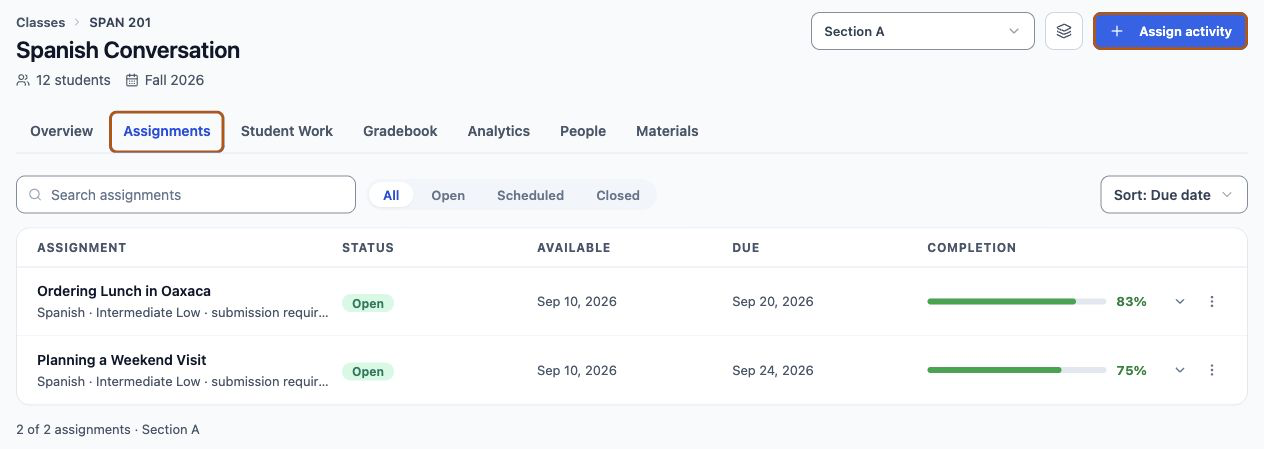
Where to find this: Classes › open a class › Assignments › Assign Activity
An activity you've finished isn't visible to anyone yet. Activities live in your Activities list independently of any class, and become visible to students only when you assign them to a section. That separation is what lets you reuse one activity across several sections and several terms.

Lemon says: Finished but unassigned is a completely safe state. Nothing is live until you assign it.
Assign to a section, not a class
Assignment happens at section level. If your class has multiple sections, you choose which one you're assigning to using the section selector, and each section keeps its own dates and its own roster.
- Different sections can get the same activity on different dates
- Each section's completion and submissions are tracked separately
- A single-section class works exactly the same way — the section is just created for you
Lemon says: Teaching Tuesday and Thursday sections? Assign the same activity twice with dates that match each timetable.
Opens and Due dates
The assignment form asks when it opens and when it's due. Opens (Right away or On a date) controls when students can start. Due is optional — with No due date, the activity stays open indefinitely, which is often what you want for practice material.
- Opens — when students can start; until then they see it as Not open yet
- Due (optional) — after this, submissions are marked late rather than blocked
Lemon says: Setting Opens to a future date is a good habit. It lets you prepare a whole unit and have it open on schedule.
Completion only or submission required
The assignment form also asks what counts as done. This choice determines what students have to do after speaking, and it changes what you see when you review.
- Completion only — the activity is marked complete when the student finishes it; nothing else is required of them
- Submission required — the student chooses which of their sessions to submit, and can change that choice until you release a grade or comment (after the due date, a change is recorded as late)
- Submission required also asks how you'll evaluate it: Ungraded review, or Manual score with the points possible. Both lock once a student submits; dates can still change
Lemon says: Completion only for practice. Submission required when you're going to grade it — students pick their best attempt, which is fairer and produces better work.
Students can practice more than once
Nothing stops a student running an activity several times, and with submission required they choose which attempt counts. This is one of the most useful things about the format and one of the least advertised — worth telling students explicitly.
- Repeated attempts are allowed and often produce a visibly better second try
- With submission required, only the session the student selected is what you see
- Students can change their selection until you release a grade or comment — after the due date, a change is recorded as late
Lemon says: Tell your students they can try again. Many assume the first attempt is the only one and get anxious about it.
What unassigning actually does
Unassigning is the step people are most nervous about, so it's worth being precise. Unassigning removes the activity from that section's assignment list. It does not delete the activity, and it does not delete anything your students did.
- The activity stays in your Activities list and can be reassigned at any time
- Student conversations and submission history are preserved
- Assignment identity is retained so past work stays attributable
- Only explicitly deleting an activity archives the activity itself
Lemon says: Unassigning is a deployment change, not a delete. Your students' work stays exactly where it was.
A sensible scheduling rhythm
A few habits that make the term run more smoothly, drawn from what tends to go wrong when they're missing.
- Assign a unit's worth at once with staggered opening dates
- Test the activity with Try before it becomes available, not after
- Give the first activity of term a generous window — first-time setup takes students longer
- Avoid a due date that lands the same night as a written assignment
Lemon says: The first activity of the term always takes longer than you think. Microphone permissions, headphones, finding a quiet room — build in slack.